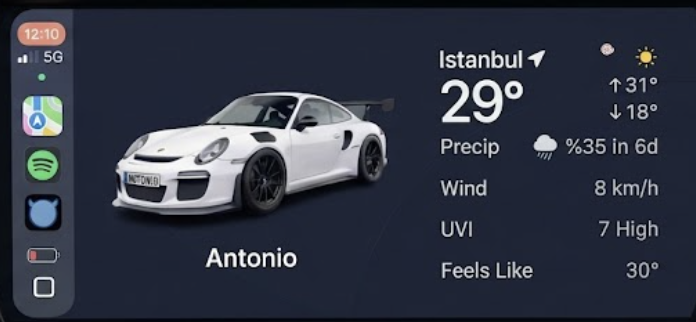
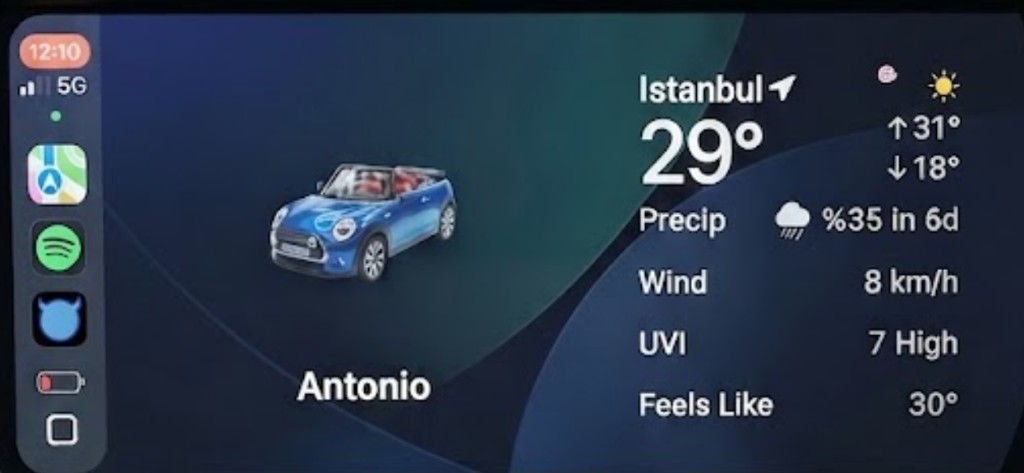
My Antonio
CarPlay Widget Setup
Add the My Antonio badge to your CarPlay dashboard. Setup happens in iPhone Settings, not inside the My Antonio app.
Requires CarPlay with vehicle widgets (iOS 26.4 or later for full CarPlay bar controls).
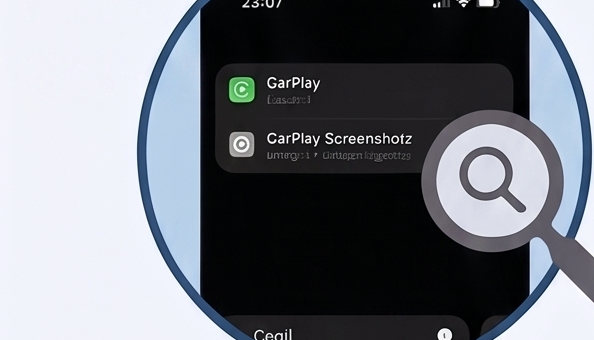
Step 1
Find CarPlay settings
On your iPhone, open Settings and search for “CarPlay”.
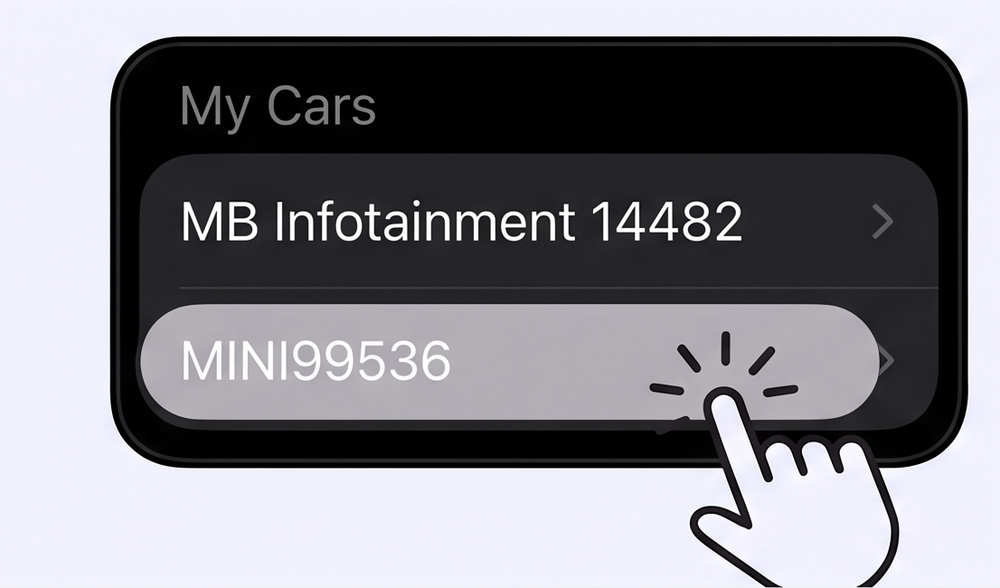
Step 2
Select your connected car
Under My Cars, tap the car you use with CarPlay (for example MINI99536).
Step 3
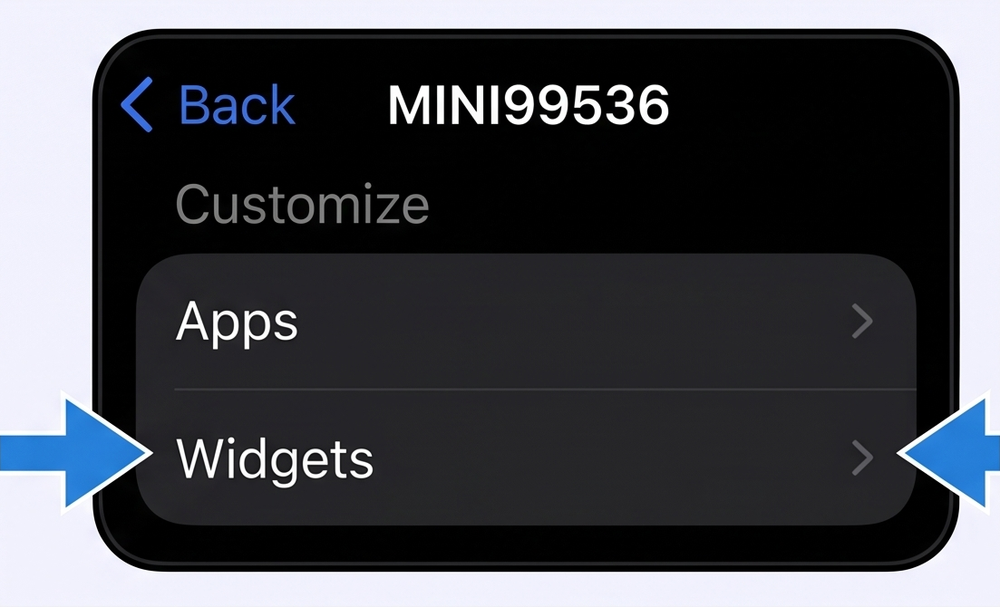
Open Widgets
Under Customize, tap Widgets.
Step 4
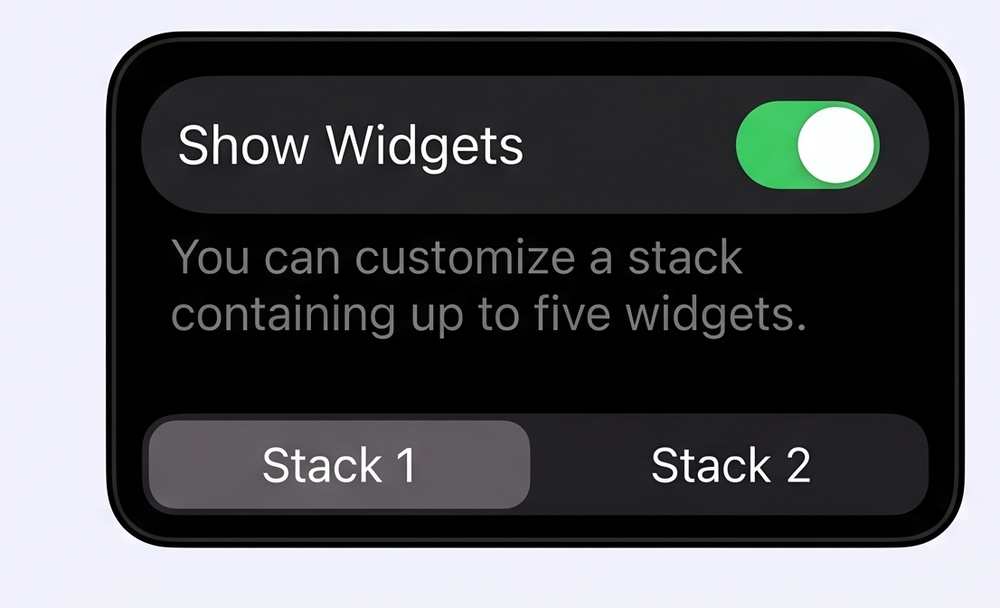
Enable widgets and pick a stack
Turn Show Widgets on, then tap a stack (Stack 1 or Stack 2) to customize it.
Step 5
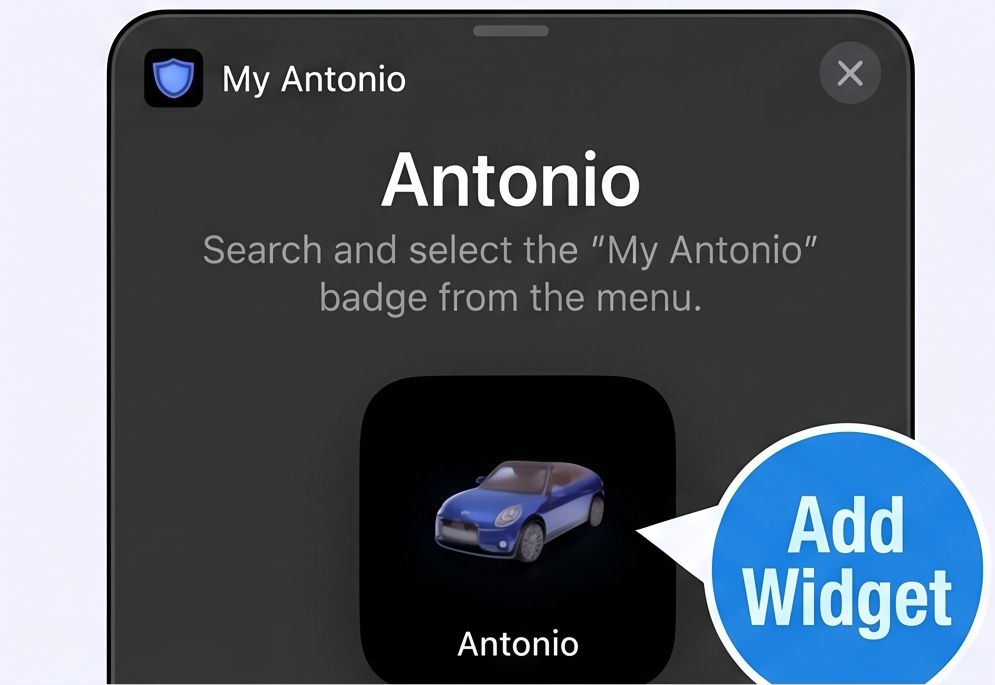
Add My Antonio
Find My Antonio in the list and tap Add Widget.
Step 6
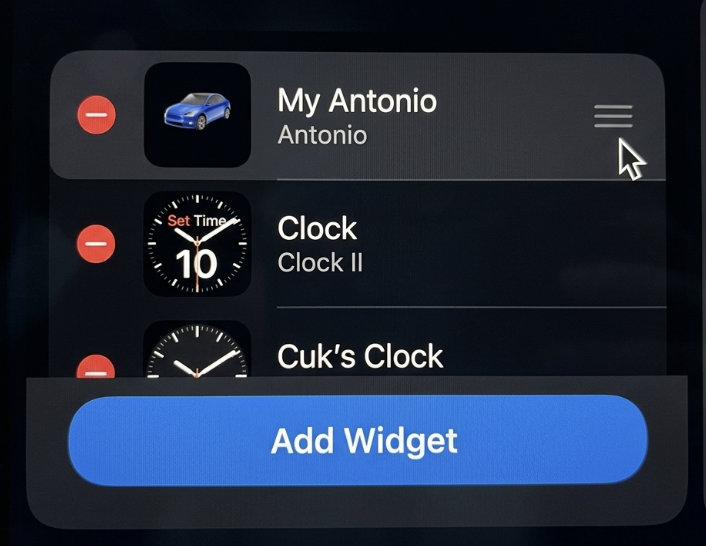
Reorder your stack
Drag widgets to your preferred order. Each stack supports up to five widgets.
What it looks like on CarPlay
After setup, My Antonio appears as a dashboard widget with your car profile. You can pair it with other widgets (such as Weather) in the same stack.